

The Money Map — Monthly Budget & Bill Tracker
Your whole month. One clear picture.
Organize income, spending, upcoming bills and savings goals in a beautifully designed Excel toolkit.
- Desktop Microsoft Excel
- Tested on Windows
- Mac not independently verified
- No bank connection
Inside the workbook
Four tabs. One clear month.
Choose a tab to see the real sheet, what it does and how it helps.

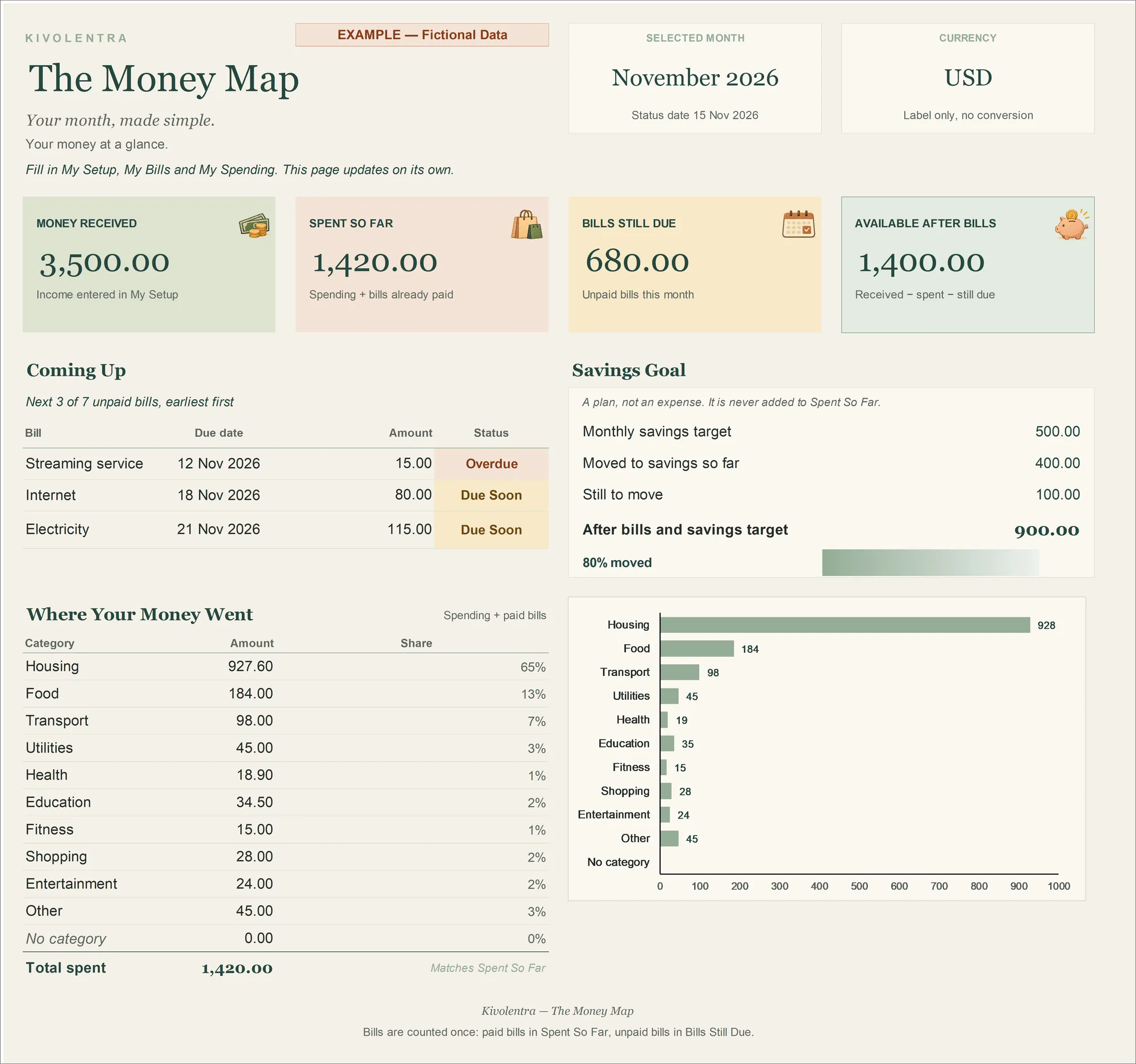
My Money Map
Your month at a glance.
The dashboard brings everything together: money received, spent so far, bills still due and what’s available after bills, plus the next three unpaid bills, your savings goal and a breakdown of where the money went by category. It updates on its own as you fill in the other tabs.
- Example
- 3,500.00 received − 1,420.00 spent − 680.00 still due = 1,400.00 available after bills (fictional November 2026).
- Why it helps
- Open one tab and know where you stand, without adding anything up yourself.
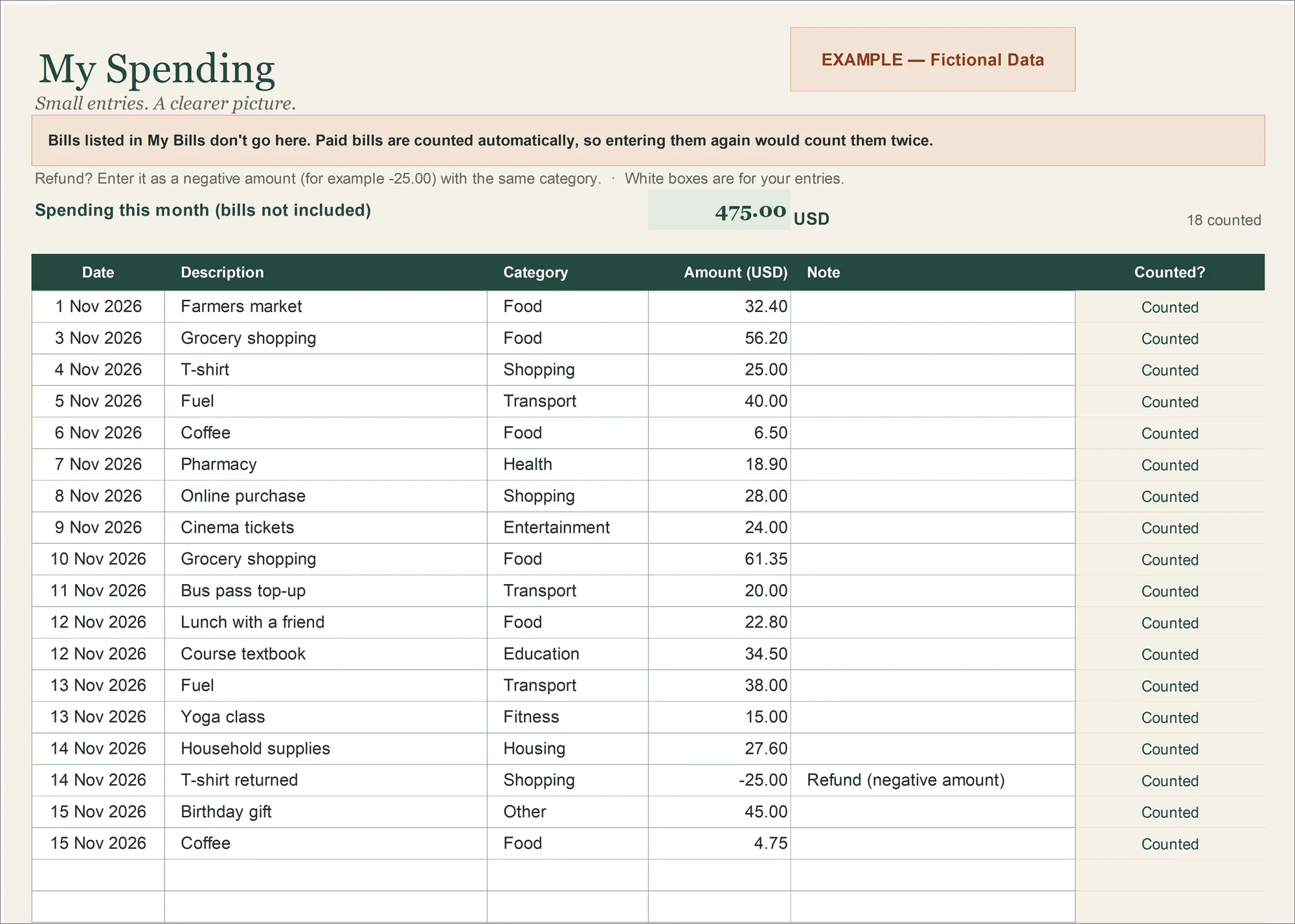
My Spending
Small entries. A clearer picture.
Record each purchase with a date, a description, a category and an amount. A row shows “Counted” once it falls inside the selected month. Refunds are entered as negative amounts. Bills never go here, because paid bills are counted automatically.
- Example
- 6 Nov 2026 · Coffee · Food · 6.50, one of 18 fictional purchases totalling 475.00.
- Why it helps
- Categories feed the dashboard’s “Where your money went” breakdown with no extra work.
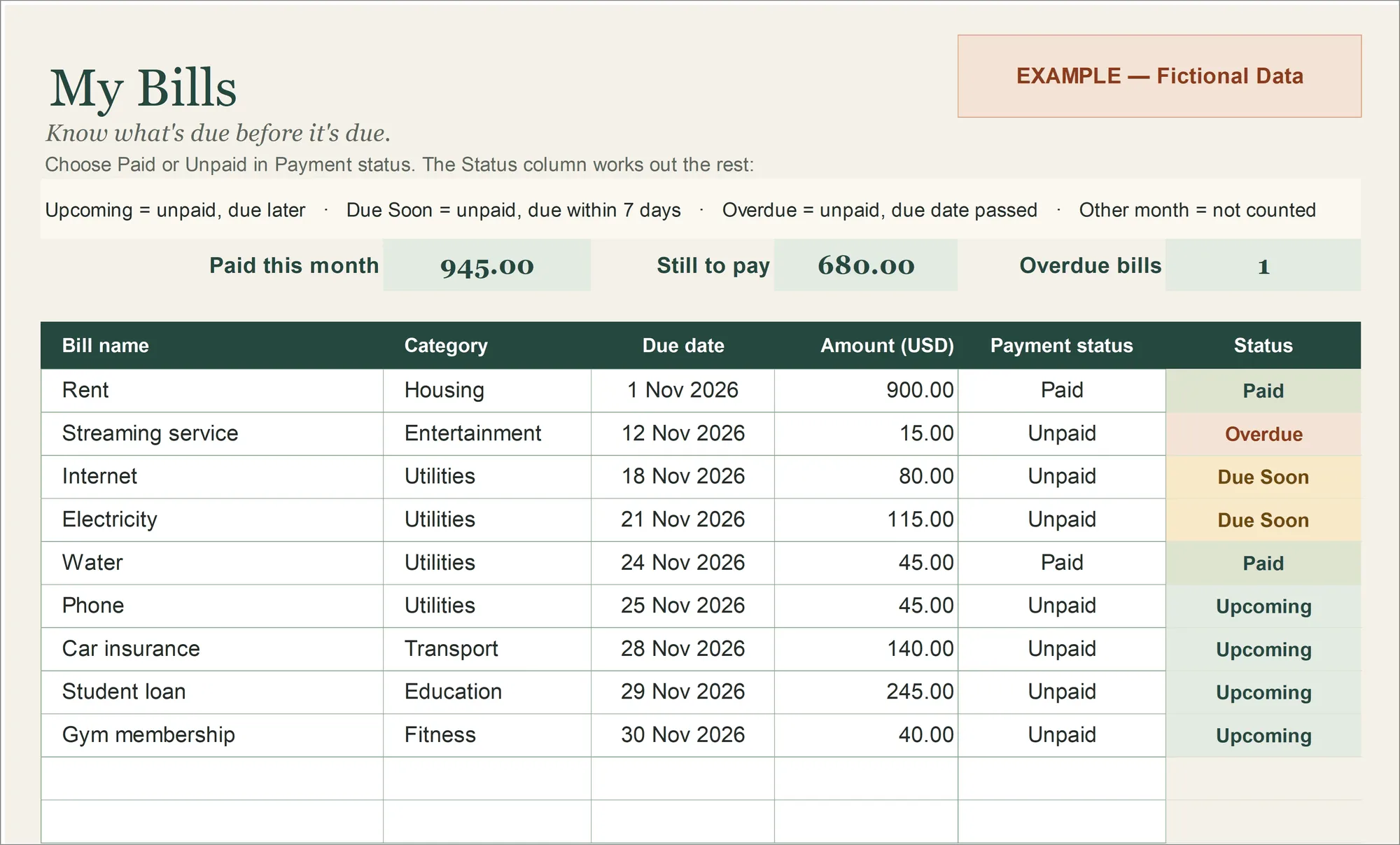
My Bills
Know what’s due before it’s due.
Add each bill with a category, due date and amount, then set its payment status to Paid or Unpaid. The Status column works out the rest: Upcoming, Due Soon (within 7 days), Overdue, Paid or Other month.
- Example
- Internet, 80.00, due 18 Nov, Unpaid → shown as Due Soon on a status date of 15 Nov.
- Why it helps
- Overdue and upcoming bills stand out, and each bill is counted exactly once.
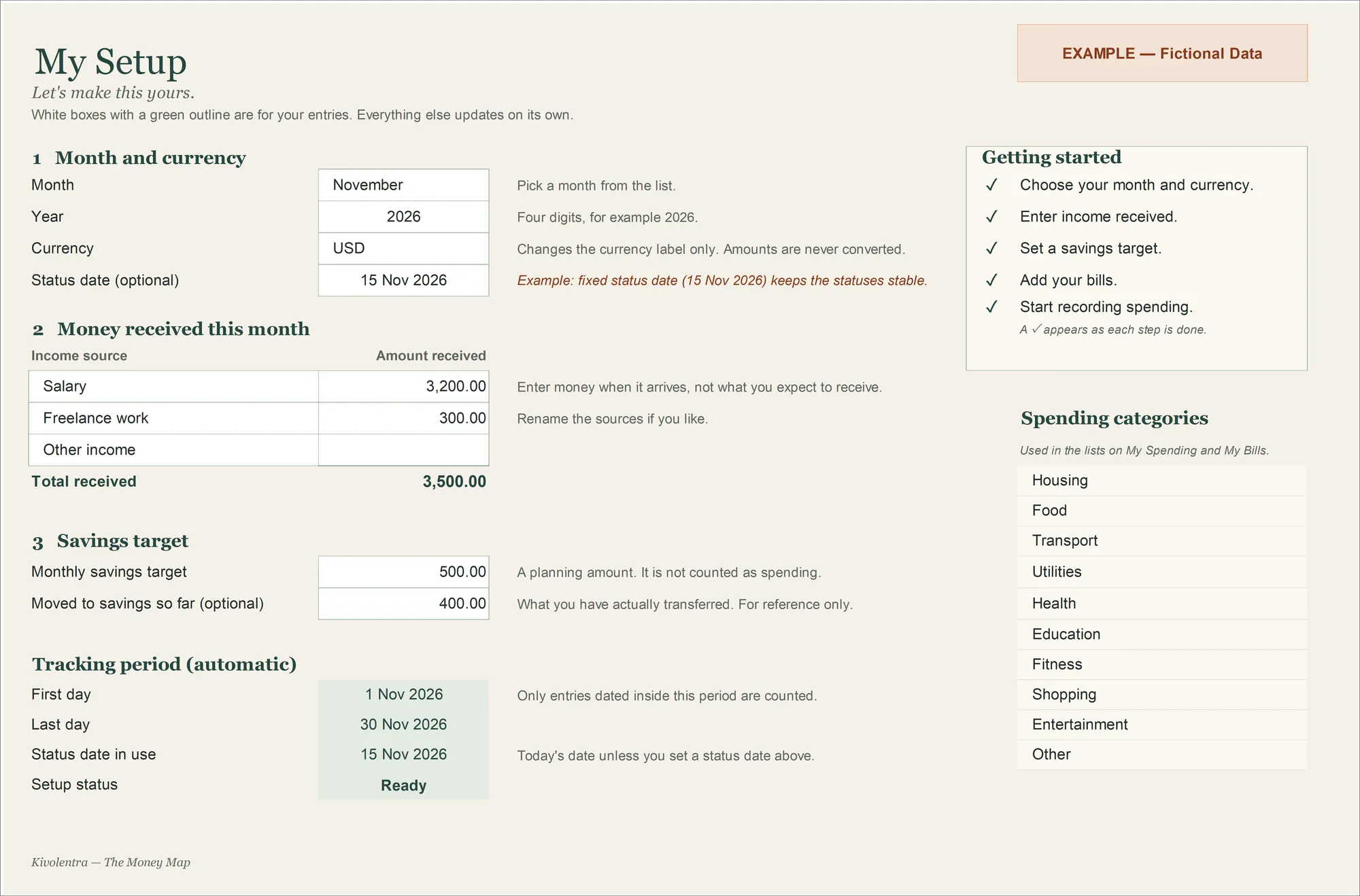
My Setup
Let’s make this yours.
Choose the month, year and currency label (15 options, label only, no conversion), enter up to three income sources and set a monthly savings target. A “Getting started” checklist ticks itself off as you go.
- Example
- November 2026 · USD · Salary 3,200.00 + Freelance work 300.00 = 3,500.00 received.
- Why it helps
- A couple of minutes of setup, and the rest of the workbook follows along.
Interactive preview
Try the logic before you buy.
Tick bills as paid, change the income or adjust spending. The four totals follow the same rules as the workbook’s dashboard.
Interactive preview using fictional sample data. The purchased product is a reusable Microsoft Excel workbook.
Bills this month
Tick a bill when it is paid. Amounts can be edited.
| Paid | Bill | Amount |
|---|---|---|
| RentPaid | ||
| Streaming serviceUnpaid | ||
| InternetUnpaid | ||
| ElectricityUnpaid | ||
| WaterPaid | ||
| PhoneUnpaid | ||
| Car insuranceUnpaid | ||
| Student loanUnpaid | ||
| Gym membershipUnpaid |
Money received
Everyday spending
$475.00 of everyday purchases this month (bills not included). Bills are never entered here, so nothing is counted twice.
Adjust spending by category
Where the money went
Spent so far by category, including paid bills.
Everything you type stays in this browser tab. Nothing is saved or sent anywhere, and the demo resets when you leave the page.
How it fits together
Every part of your month, connected.
Select a number on the picture, or read the four parts below.

Housing
Rent and household costs sit in their own category. In the example month, housing is 65% of everything spent, the kind of fact the dashboard makes obvious at a glance.
Everyday spending
Groceries, fuel, coffee: record each purchase in My Spending with a date and a category. Refunds go in as negative amounts.
Upcoming bills
My Bills shows each bill as Upcoming, Due Soon, Overdue or Paid, and the dashboard lists the next three unpaid bills, earliest first.
Savings goal
Set a monthly savings target in My Setup. It is a plan, not an expense, so the dashboard shows what would be left after reserving it.
Key features

Never lose track of a bill
Due dates become clear statuses. One overdue bill in the example stands out straight away, instead of hiding in a list.

See where it actually went
Ten everyday categories, from housing and food to fitness and entertainment, with each one’s share of the month.

Plan what you keep
Set a savings target and see what’s left after reserving it: 1,400.00 − 500.00 = 900.00 in the example.
What’s included
Four files in one download.
Instant digital download from Payhip after payment: one ZIP file (about 4 MB).
The Money Map workbook
Excel (.xlsx)
The clean, reusable workbook with four tabs: My Money Map, My Spending, My Bills and My Setup. Formulas are protected so they are not overwritten by accident; input cells stay open.
Completed example workbook
Excel (.xlsx)
The same workbook filled in with a fictional November 2026 month, so you can see how every tab works before entering your own figures.
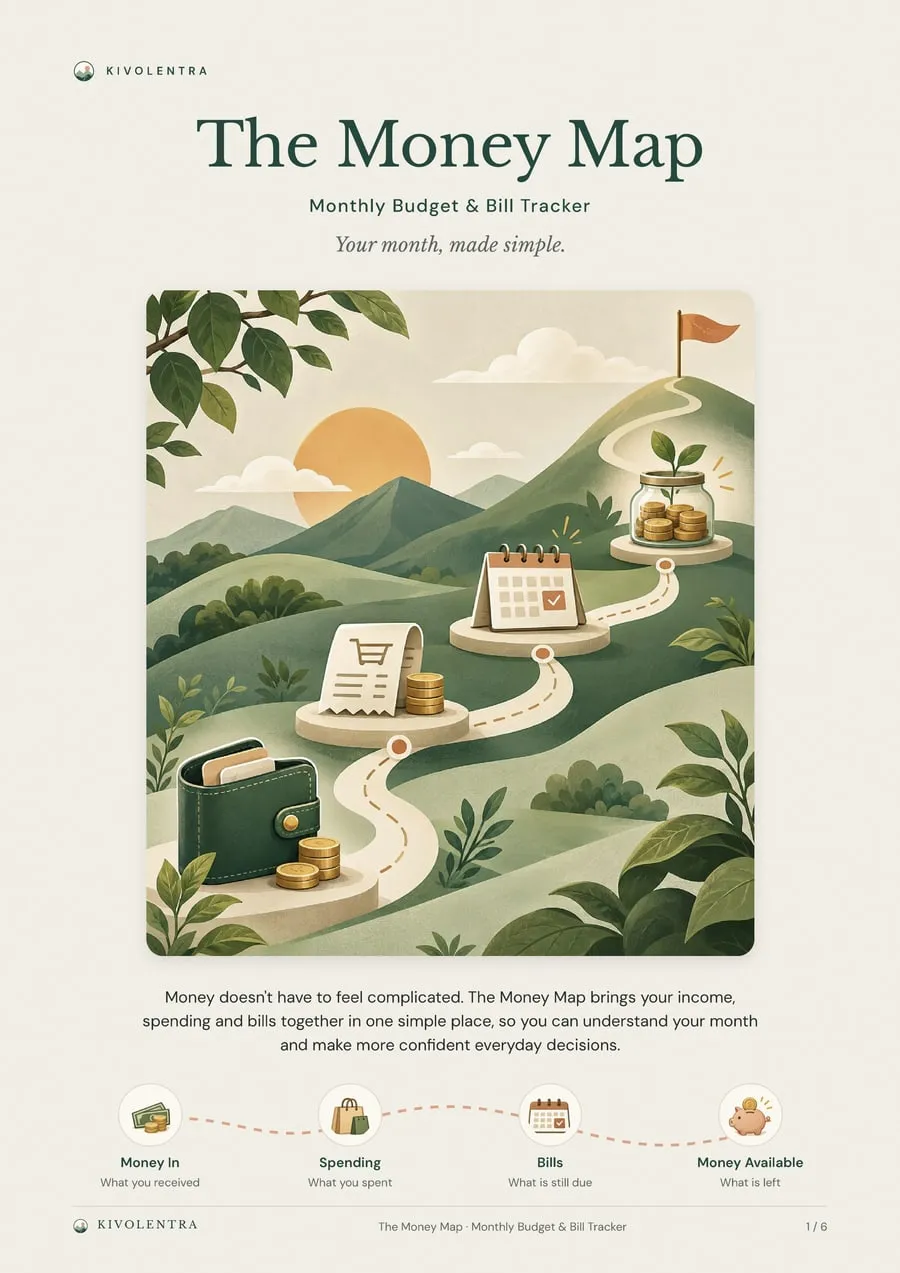
Illustrated guide
PDF, 6 pages
Setup in five steps, tracking spending and bills, understanding the dashboard, and closing the month.
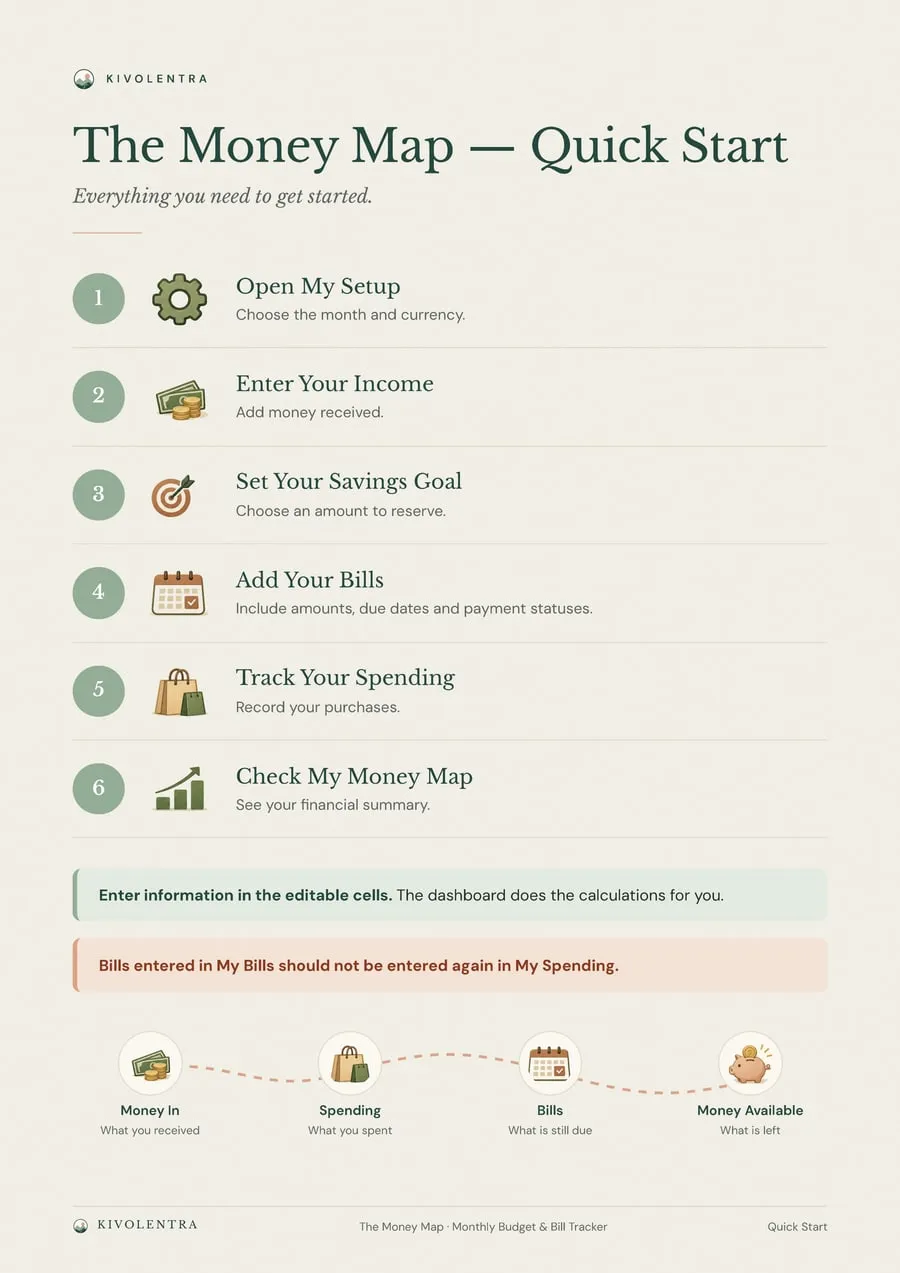
Quick start
PDF, 1 page
The six steps on one page, for printing or keeping beside your screen.
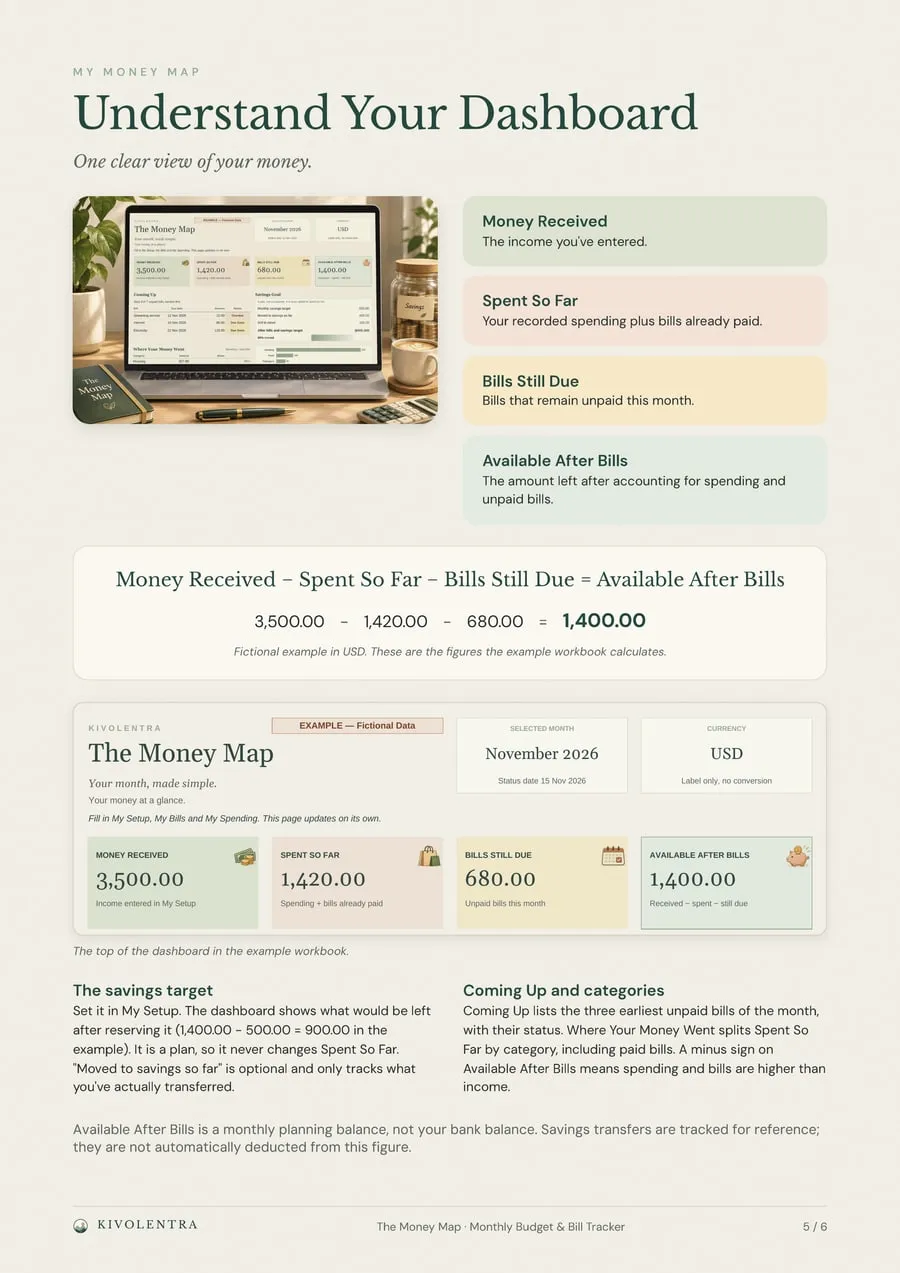
From the guide · page 5 of 6
“Money Received − Spent So Far − Bills Still Due = Available After Bills.”
Each page pairs a short explanation with a real view of the workbook, so you always know which cells to fill in and what the dashboard is telling you.
Compatibility
Check before you buy.
We would rather you know exactly what it works with than find out after downloading.
Designed for
- Desktop Microsoft Excel
- Core workflow tested in Excel on Windows
Not officially supported
- Google Sheets (not officially supported)
- Apple Numbers (not officially supported)
Good to know
- Mac compatibility has not been independently verified.
- No bank connections: you enter your own figures.
- Currency choice changes the label only. Amounts are never converted (15 currency labels).
- An organizational tool. It does not provide financial advice.
What exactly do I receive?
One ZIP download (about 4 MB) containing four files: the Money Map Excel workbook, a completed example workbook with fictional data, a six-page illustrated PDF guide and a one-page quick-start PDF.
Which software do I need?
Desktop Microsoft Excel. The workbook is designed for Excel and its core workflow has been tested in Excel on Windows. Mac compatibility has not been independently verified.
Will it work in Google Sheets or Apple Numbers?
They are not officially supported. The workbook is built and tested for desktop Microsoft Excel, so we can’t promise that its formulas, protection and formatting behave the same elsewhere.
Does it connect to my bank?
No. There are no bank connections. You enter your own income, bills and spending, which also means your figures stay in your own file.
Can I use a different currency?
Yes. You can choose from 15 currency labels in My Setup. Changing the label does not convert any amounts.
Can I use it every month?
Yes. The guide recommends saving each completed month under its own name, then starting the next month from a fresh copy of the clean workbook. It’s a one-time purchase, not a subscription.
Does The Money Map give financial advice?
No. It is an organizational tool that shows the figures you enter more clearly. It does not provide financial advice.
How is it delivered?
Checkout and delivery are handled by Payhip. Once payment is complete, Payhip gives you the ZIP file to download. Nothing physical is shipped.
Can I get a refund?
Because the files are delivered instantly and can’t be returned, there are no refunds for a change of mind. If a file is faulty, won’t open in the supported software, or isn’t as described, we’ll replace it or refund you. See the Refund Policy.
The Money Map — Monthly Budget & Bill Tracker
One purchase. A fresh start every month.
- Excel workbook + completed example
- Six-page illustrated guide + one-page quick start
- One ZIP download, about 4 MB
$12.99 USD
Buy on PayhipYou’ll continue to Payhip, which handles secure checkout and the download. This site never sees your payment details.